> ## Documentation Index
> Fetch the complete documentation index at: https://docs.oneloop.ai/llms.txt
> Use this file to discover all available pages before exploring further.
# Scopes
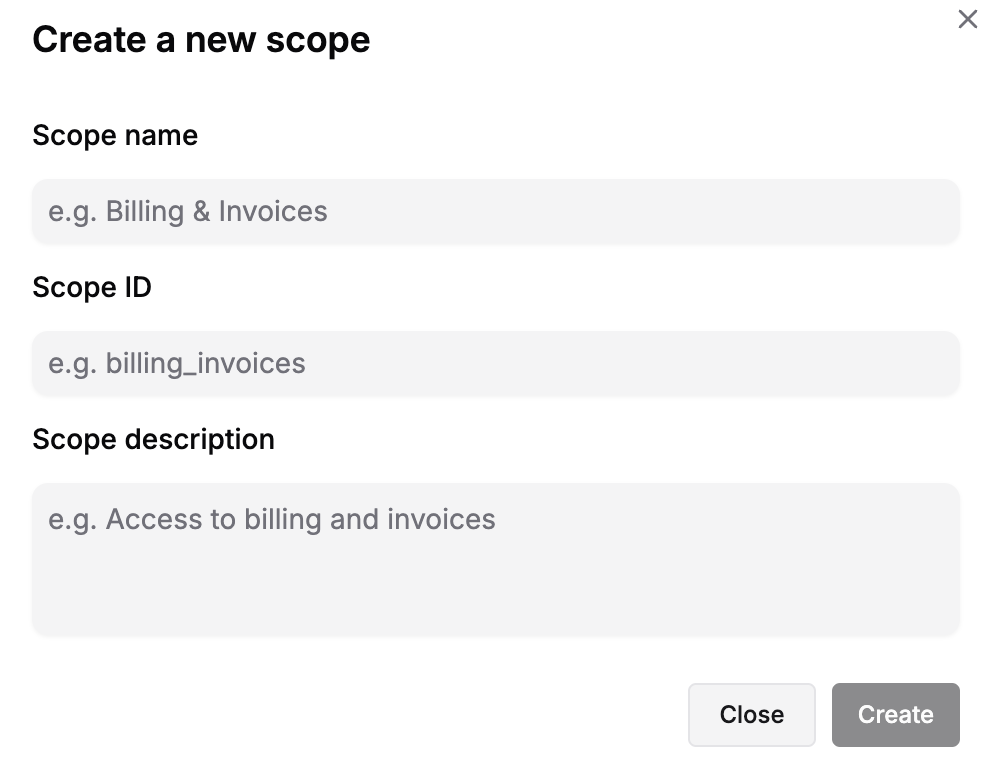
You must specify an unique id when creating a scope. You can then reference
this id when verifying API keys using the SDKs
Scopes are a way to add permissions and rbac to your API. For example, you can create a scope called `profile`. That way when you create an API key for a user, you can assign the `profile` scope along with access like `read`, `create`, `update`, and `delete`.
## Creating a Scope
There are two ways to create a scope.
### Using the Dashboard
You can create a scope in the dashboard
 ### Using the API
You can create a scope using the API or SDK. See how you can create a scope using the [Create Scope API](/api-reference/endpoints/create-a-scope):
## Using Scopes
You can easily add permissions to your API endpoints by adding scopes in [Verify Request](/api-reference/endpoints/verify-a-key-for-a-given-workspace) endpoint. This way, only the API keys with the required scopes will be considered `VALID` and can access your endpoint.
## Considerations
* [x] Scopes are associated with a Workspace.
* [x] Scopes are free-form, meaning you can create a scope name `panda` without any meaning
* [x] Scopes created on a workspace are then available to be added to an API key created under that workspace
### Using the API
You can create a scope using the API or SDK. See how you can create a scope using the [Create Scope API](/api-reference/endpoints/create-a-scope):
## Using Scopes
You can easily add permissions to your API endpoints by adding scopes in [Verify Request](/api-reference/endpoints/verify-a-key-for-a-given-workspace) endpoint. This way, only the API keys with the required scopes will be considered `VALID` and can access your endpoint.
## Considerations
* [x] Scopes are associated with a Workspace.
* [x] Scopes are free-form, meaning you can create a scope name `panda` without any meaning
* [x] Scopes created on a workspace are then available to be added to an API key created under that workspace